
Tracking IT equipment from purchase order to desk
4 min read
A lot of IT work is ordering things. New hires need laptops, a boardroom needs screens, a job site needs a spare pool of headsets. The ordering part is easy. The hard part is what comes after: knowing which of the twelve laptops on a purchase order have actually arrived, which serial number went to which desk, and what is still sitting in the storage room.
In many teams that lives in a spreadsheet, a few emails and someone’s memory. I built the Order Management App to put it in one place.
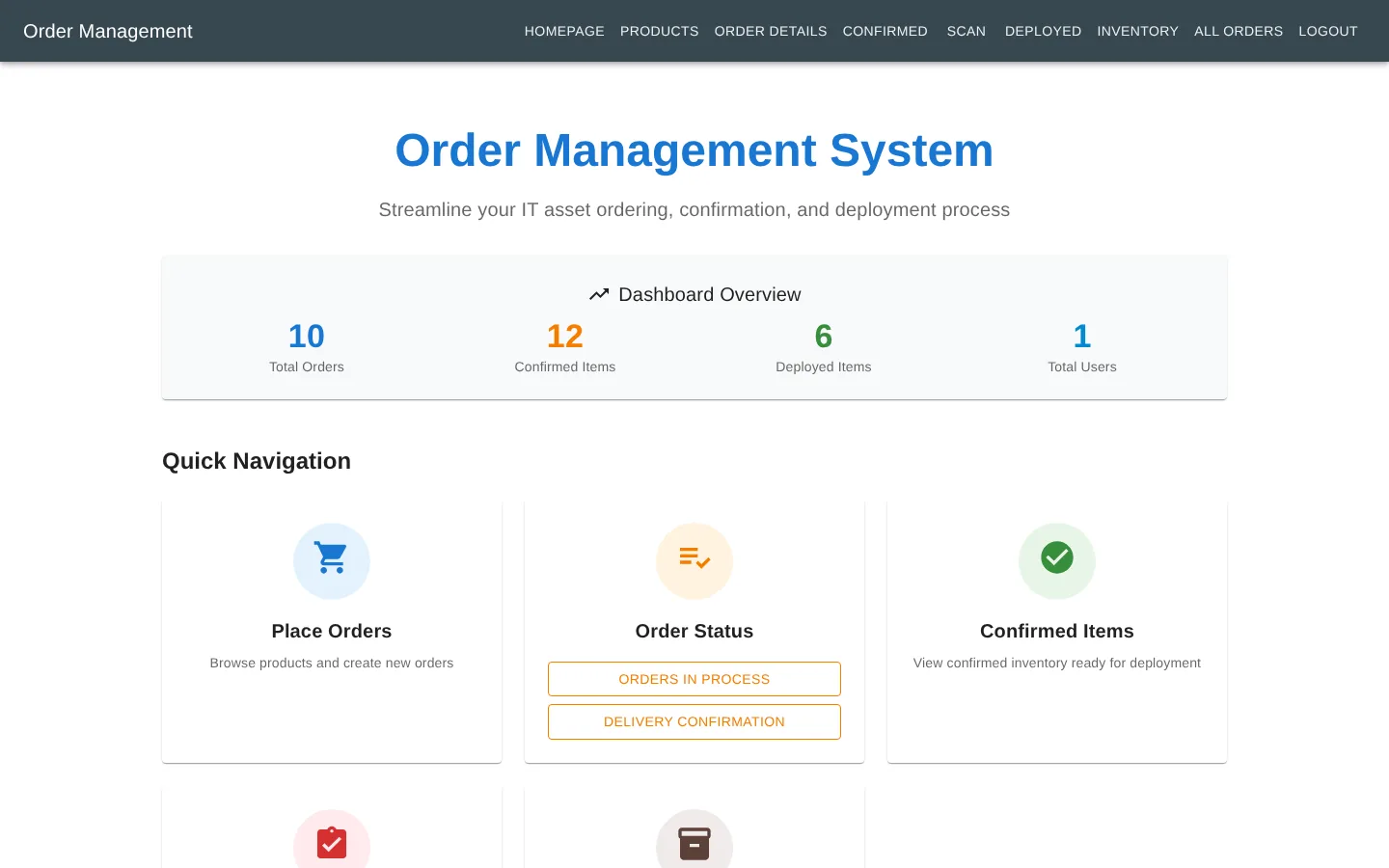
The idea: every item has three moments
An item in this app goes through three steps, and each one is recorded:
- Ordered. Someone picks products, adds them to a cart and submits one order with a PO number and a comment like “new hires, October intake”.
- Received. When the delivery arrives, each item is confirmed against its order and gets its serial number. From here on, the item is a specific laptop, not “one of five”.
- Deployed. The serial number is scanned, and the app records who received it and where it went: a desk, a boardroom, a job site trailer.
Because every step is tied to the one before it, the app can always answer the questions people actually ask. How many are still on order? Do we have a spare in stock? Where did that ThinkPad go?
Ordering
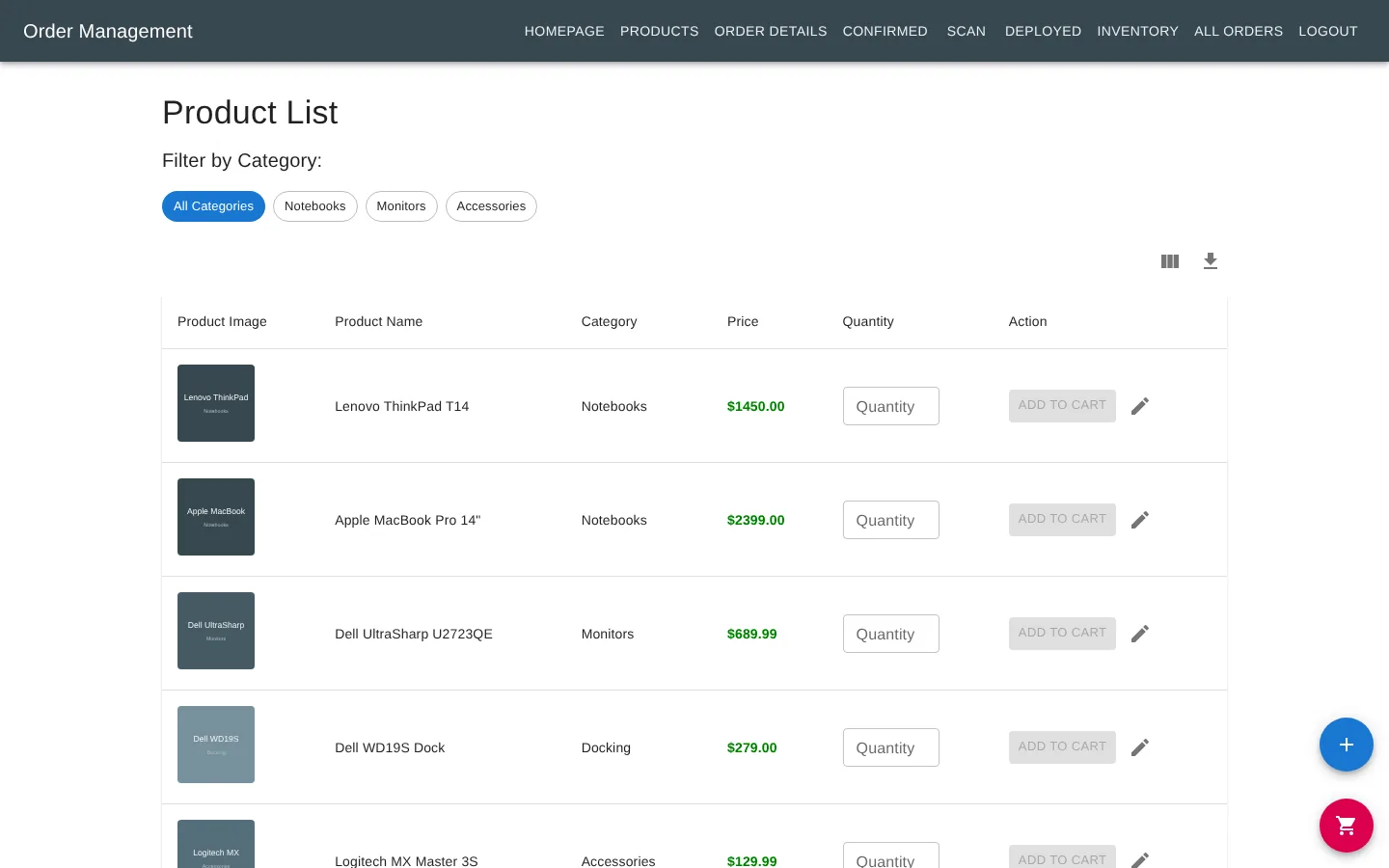
The product page is a simple catalogue with categories and prices. You add quantities to a cart and submit the whole order at once, so one purchase order stays together even when it covers laptops, docks and mice.
Receiving
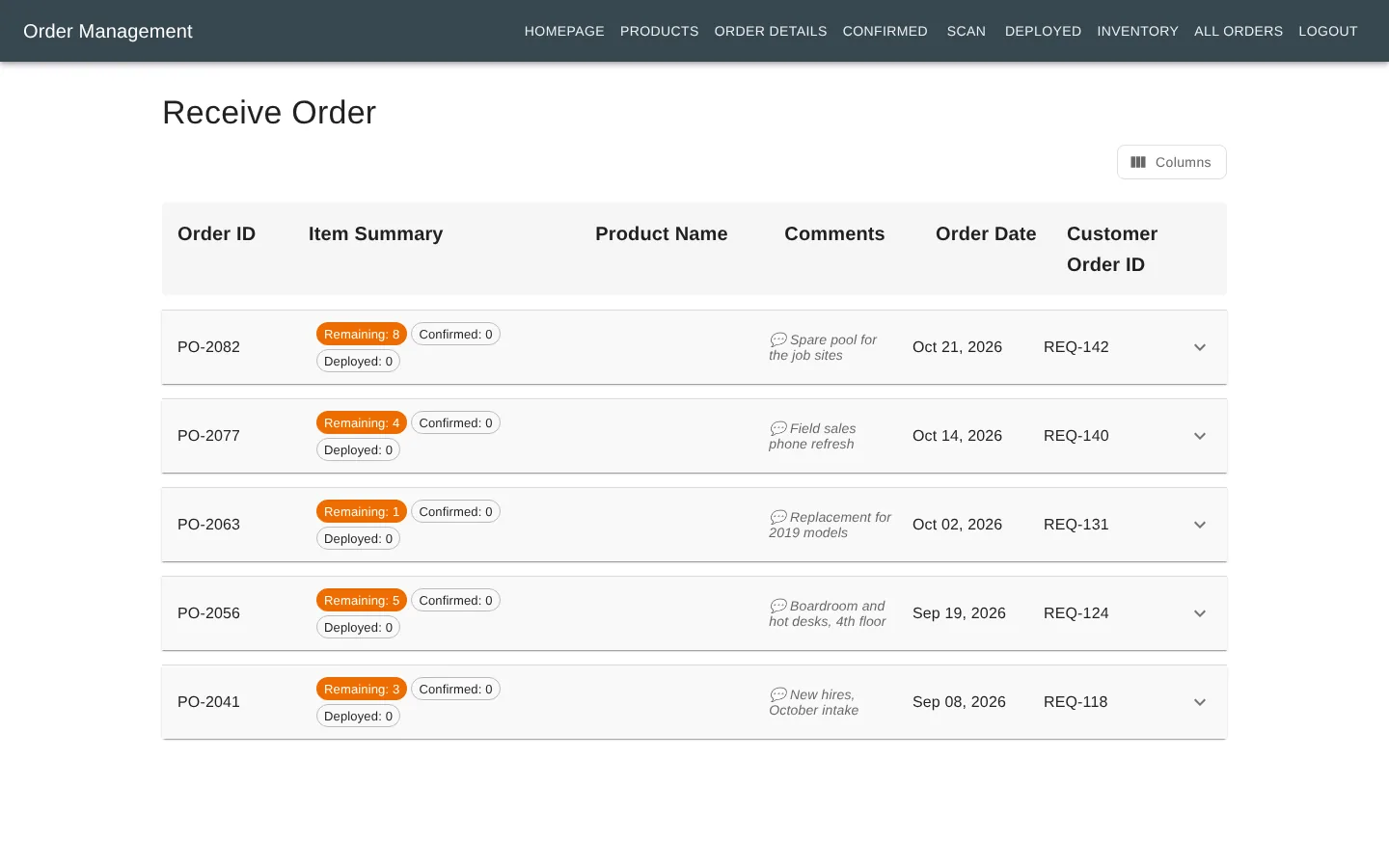
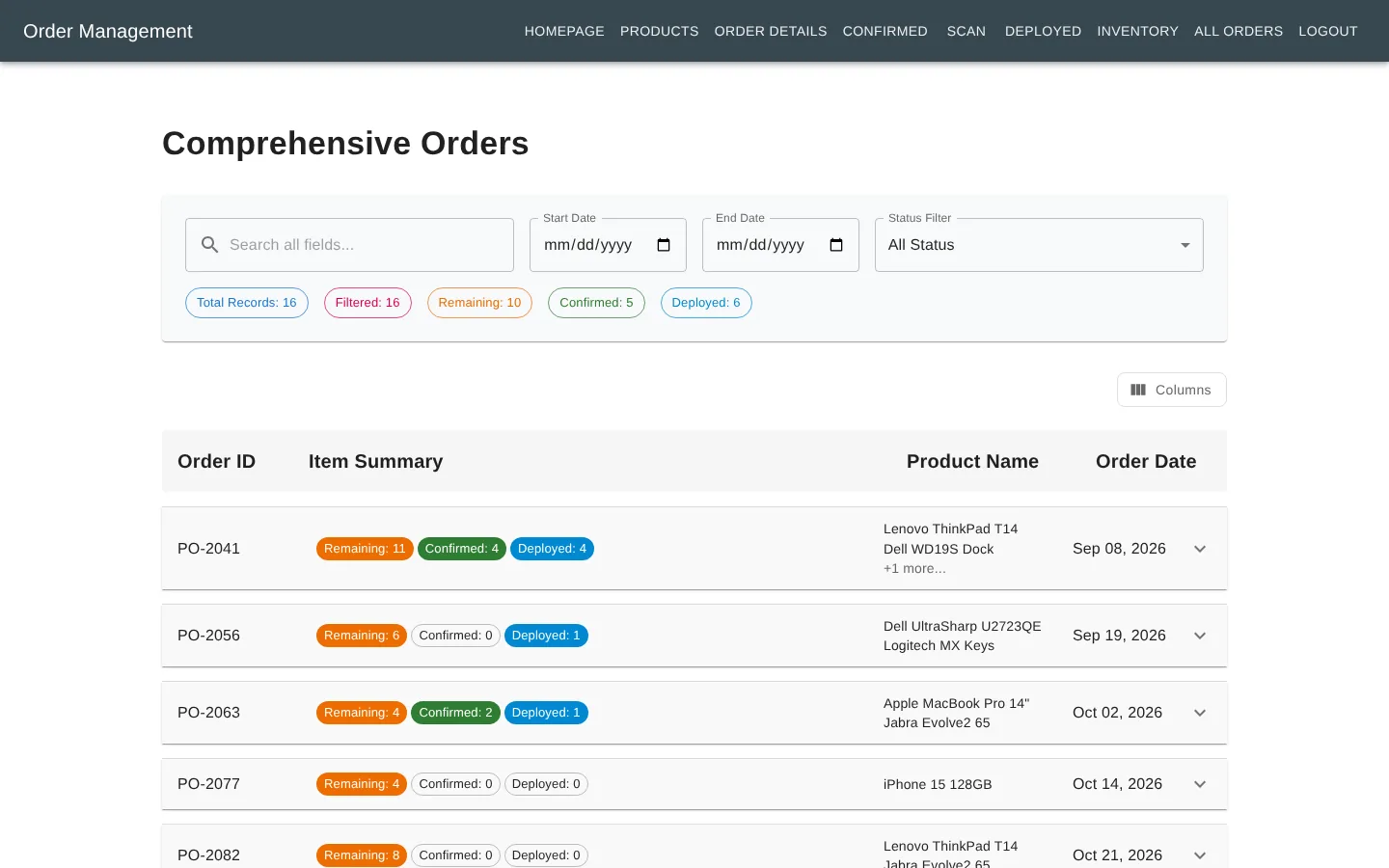
Orders that still have items to receive are grouped by PO number. Each row shows how many items are remaining, confirmed and deployed, so a half-delivered order is obvious at a glance. Opening an order lets you confirm items one by one and type or scan their serial numbers.
Deploying and tracking
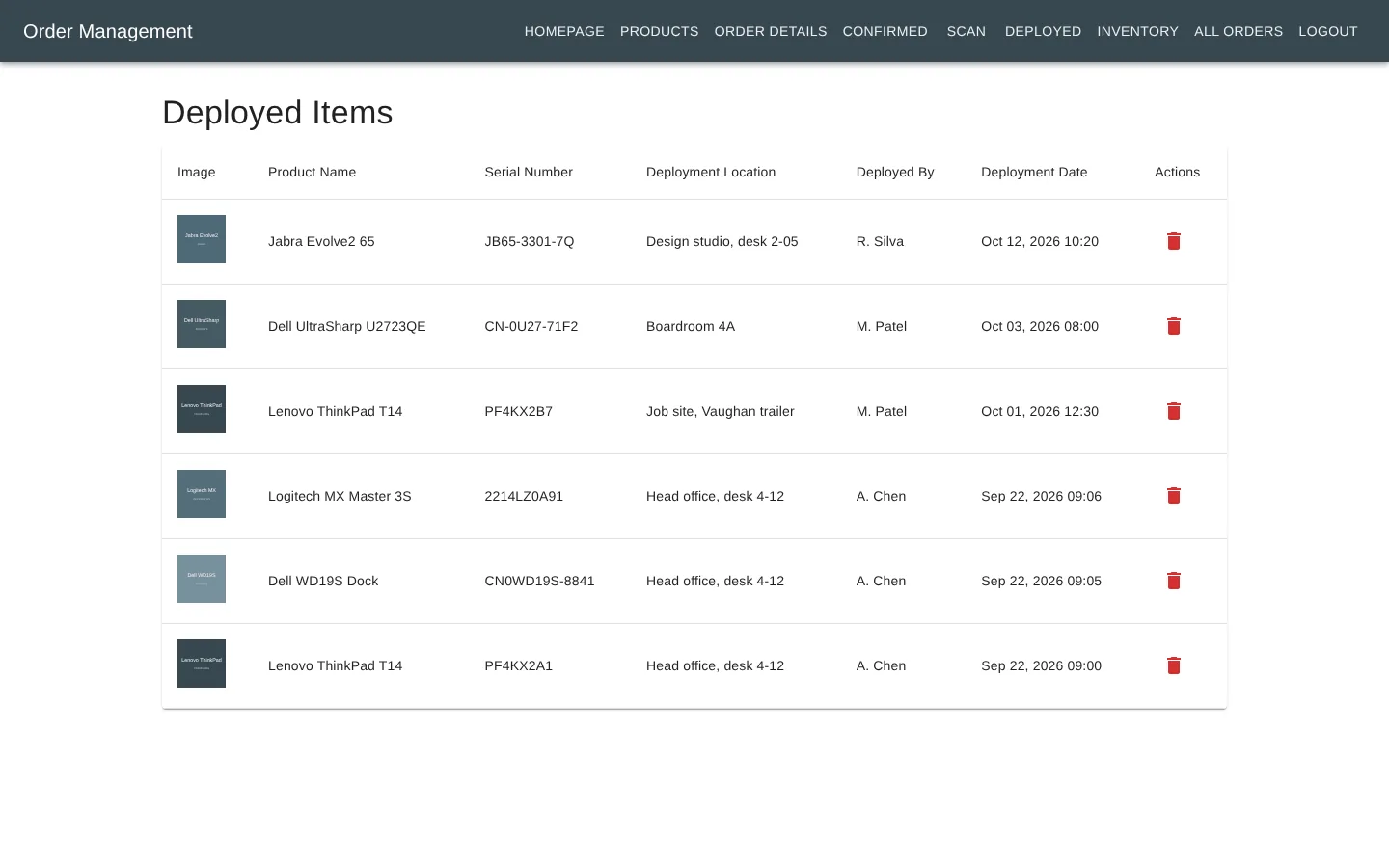
On the Scan page, a USB barcode scanner works like a keyboard: scan the serial number on the box, and the app finds the item and its order. You add where it’s going and who received it, and it moves to the deployed list.
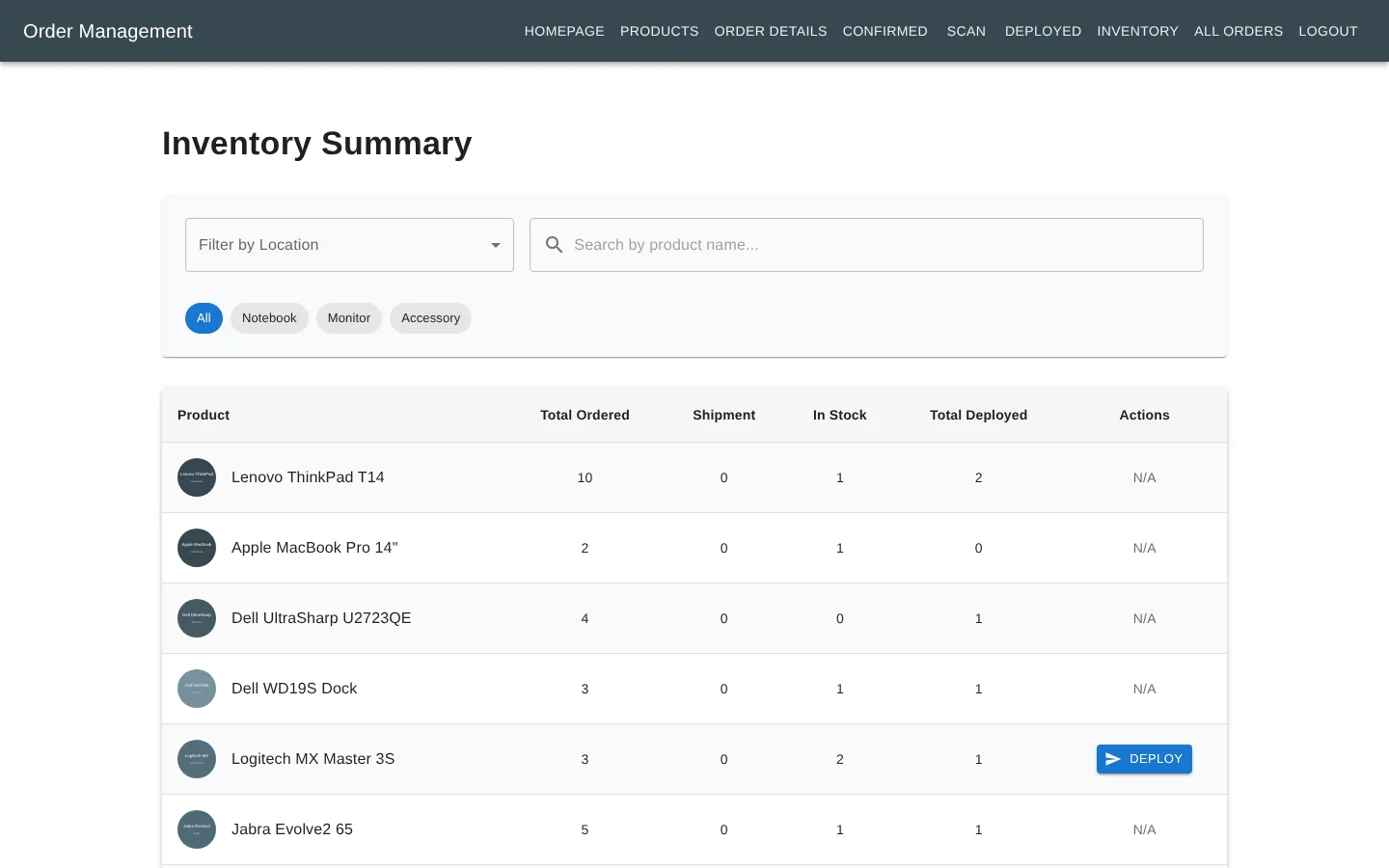
The inventory summary adds it all up per product: how many were ordered, how many are in stock and how many are deployed. This is the page I’d open before ordering more, to see whether there’s already a spare on the shelf.
The All Orders page shows the full history, with search, date filters and a status filter, with CSV export on the main tables, so an audit question like “what did we order in September and where is it now” takes a few seconds.
How it’s built
- React and Material UI for the front end. Material UI’s tables, chips and dialogs fit a data-heavy internal tool well.
- Supabase for the database, sign-in and file storage. The data is in Postgres, and the summary pages use database functions, so the counts are worked out next to the data instead of in the browser.
- Row level security on every table. The front end uses Supabase’s public key, so the database itself has to decide who can read and change what. Only signed-in staff can, and public sign-ups are turned off.
- A small Node.js and Express API, Docker Compose for running it locally, and a GitHub Actions build on every push.
A demo mode with no database
I wanted people to be able to try the app without me handing out logins to a real database. So the app has a demo mode. With one setting turned on, it swaps the Supabase connection for a small in-memory stand-in that answers the same queries from built-in sample data. Everything in the screenshots above comes from it: the orders, names and serial numbers are all made up.
That has a few nice side effects. The demo can’t leak real data, because there is none. It can be hosted as plain static files, so it costs nothing and never goes to sleep. And it made testing every page much faster, since I could reset to a known state just by reloading.
What’s next
- A live demo link, so you can click through it yourself
- A tidier navigation bar that works on phones
- An inventory report you can schedule, so the stock count arrives by email every Monday
The code is on GitHub, with setup steps for both demo mode and a real Supabase project.